Burning Bridges Higgsfield Guide: Make the Drake AI Video With Genjutsu, Step by Step
Burning Bridges Higgsfield guide: make the Drake AI video with Genjutsu Motion Transfer, the clip and photo limits, modes, cost and alternatives.
By Burning Bridges AI · Updated · 5 min read
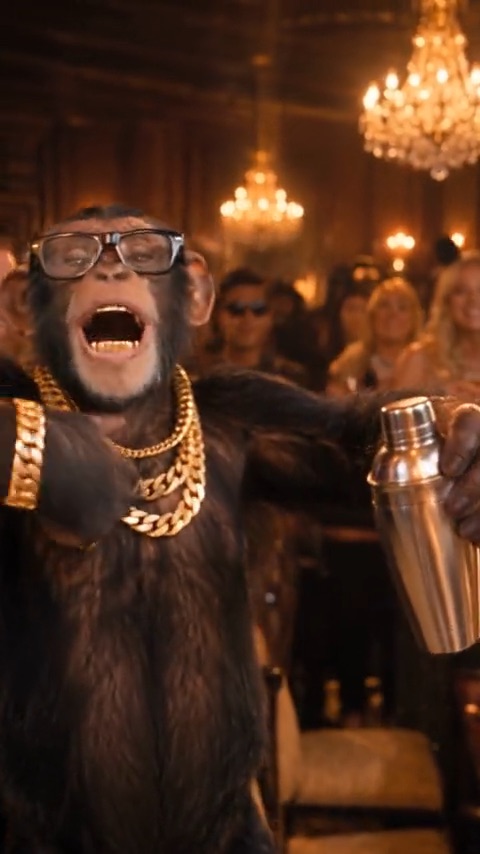
Is the Drake Burning Bridges AI on Higgsfield?
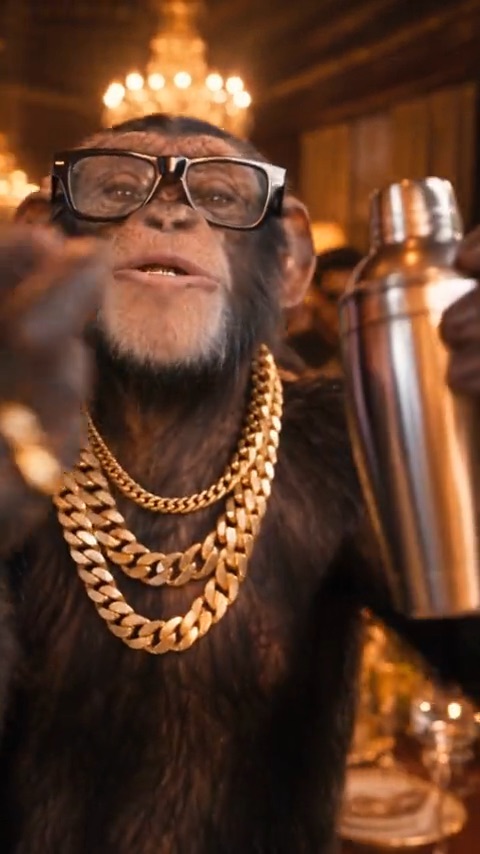
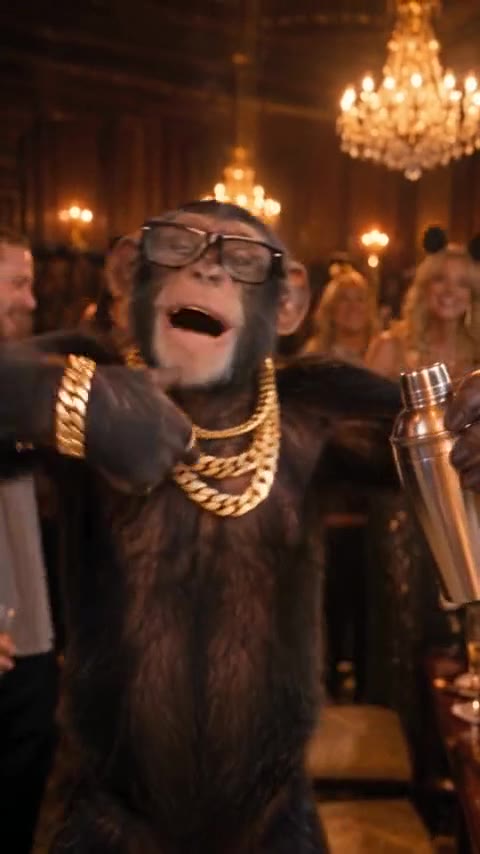
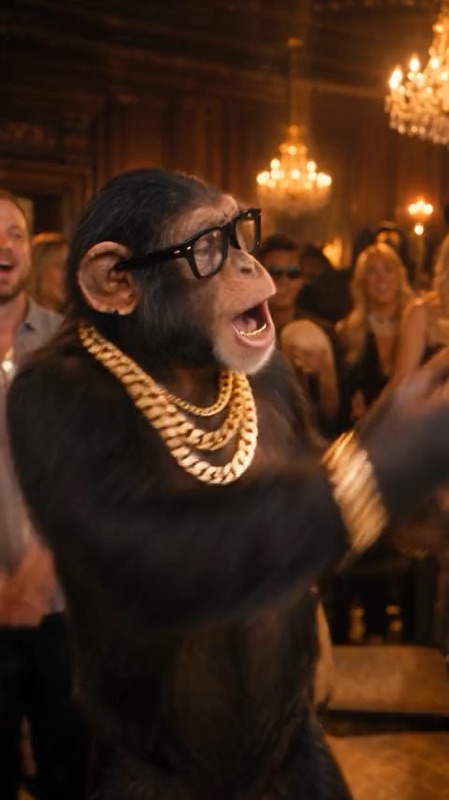
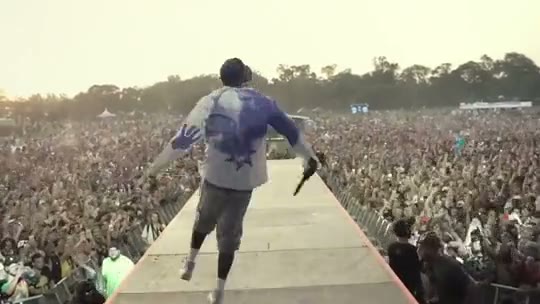
Yes. Higgsfield’s Genjutsu tool is one of the main ways people made the Burning Bridges trend. One of the earliest dated AI swaps of the clip, a Threads post from September 19, 2026, credits Genjutsu. Higgsfield has no one-click Burning Bridges template, though. Genjutsu is a general video-editing tool, and the trend clip is something you bring yourself.
You will also see the search as “higgsfield ai drake burning bridges”, “burning bridges drake higgsfield” or “genjutsu drake burning bridges”. All of them mean the same workflow.
How to make the Burning Bridges video in Higgsfield Genjutsu, step by step
Higgsfield lists five steps for Genjutsu. Here they are for the Burning Bridges clip:
- Open Higgsfield Genjutsu and choose Motion Transfer. Motion Transfer pulls the motion out of the source video and builds a new scene around it.
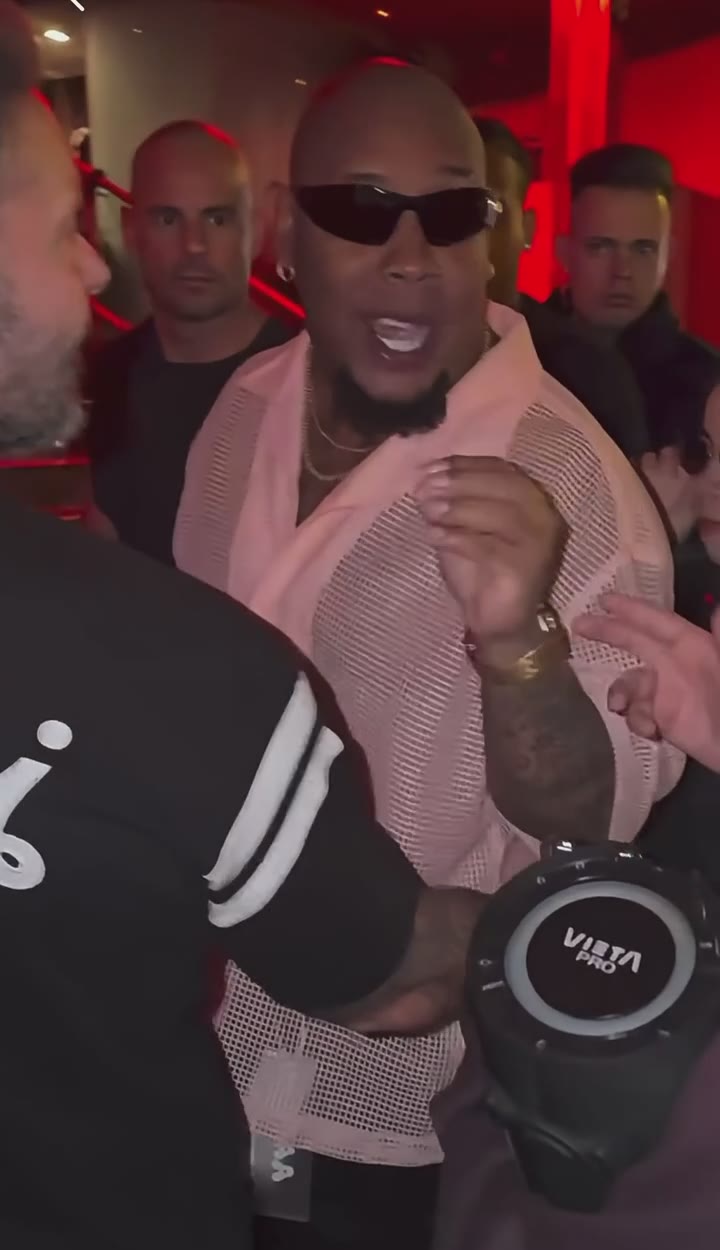
- Upload one source clip of 4 to 30 seconds. Trim the trend clip to the part you want, ideally the walk-up through the “where she at?” finish.
- Add reference photos. Genjutsu takes up to 30 images for the character, outfit or location. Tutorials for this trend recommend photos from several angles, including the back, so turns look right.
- Choose a preset or write a short description. A full prompt is not required. One line saying which performer your photo replaces is enough. Our copy-and-paste Burning Bridges prompt works here too.
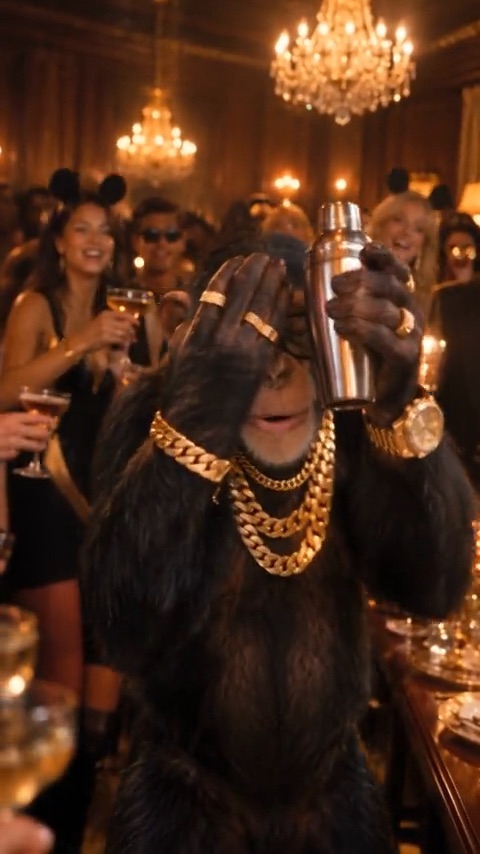
- Generate, compare with the source clip, and export. Check the grin, the hype and the hand-over-the-eyes finish before you post.
What Genjutsu needs: clip length, photos and resolution
| Setting | Higgsfield Genjutsu | Genjutsu Lite |
|---|---|---|
| Source clip | One video, 4–30 s | One video, 4–30 s |
| Reference images | Up to 30 | Up to 10 |
| Output resolution | 480p, 720p or 1080p | 720p or 1080p |
| Modes | Motion Transfer or Object Swap | Automatic, no mode choice |
| Prompt | Optional, 30+ presets | Optional |
| Source audio kept | Not stated | Not stated |
From Higgsfield’s Genjutsu blog and product page, checked November 19, 2026.
Motion Transfer, Object Swap or Genjutsu Lite: which mode fits the trend?
- Motion Transfer fits the Burning Bridges trend best. It keeps the moves and the camera of the clip and puts your character in, so the grin and the “where she at?” move stay.
- Object Swap changes one element and preserves the rest of the shot. Use it to replace a prop, such as the silver cup, rather than the performer.
- Genjutsu Lite applies changes automatically and takes fewer photos. It is the quicker option, but you can’t choose between Motion Transfer and Object Swap.
How much does Higgsfield Genjutsu cost?
Higgsfield prices Genjutsu in its own credits, per video. The cost depends on the mode and the resolution, and 1080p costs several times more than 480p. The exact price shows on the Generate button before you start, and Higgsfield’s Genjutsu blog post lists example prices for a 15-second clip. Neither the blog nor the product page mentions a free tier.
Higgsfield Genjutsu vs a one-photo Burning Bridges generator
Higgsfield Genjutsu gives you the most control, because you choose the source clip. A dedicated Burning Bridges generator is faster, because the clip is already loaded. Pick based on whether you want to find and trim the clip yourself.
| Higgsfield Genjutsu | Burning Bridges AI | |
|---|---|---|
| Trend clip | You find and trim it (4–30 s) | Three versions preloaded (16 s and 28 s) |
| Your photos | Up to 30 reference images | One photo of you, plus up to 3 friends or pets |
| Song | Not stated | Included, in time with the moves |
| Resolution | Up to 1080p | 480p, 720p or 1080p |
| Price | Higgsfield credits, shown before you generate | 100–1200 credits per video, packs from $9.90, no subscription |
Burning Bridges AI is our site, so weigh that. If you want the clip ready and the song in it, make the Burning Bridges video from one photo. For more tools side by side, see the Burning Bridges generator comparison.
Use photos and clips you have the right to use
Use photos of yourself, your pet, or friends who agreed to appear. Don’t upload photos of celebrities, public figures or anyone under 18. Higgsfield says what you generate is yours to publish, subject to its Terms of Use, so read those before posting a clip you didn’t film.