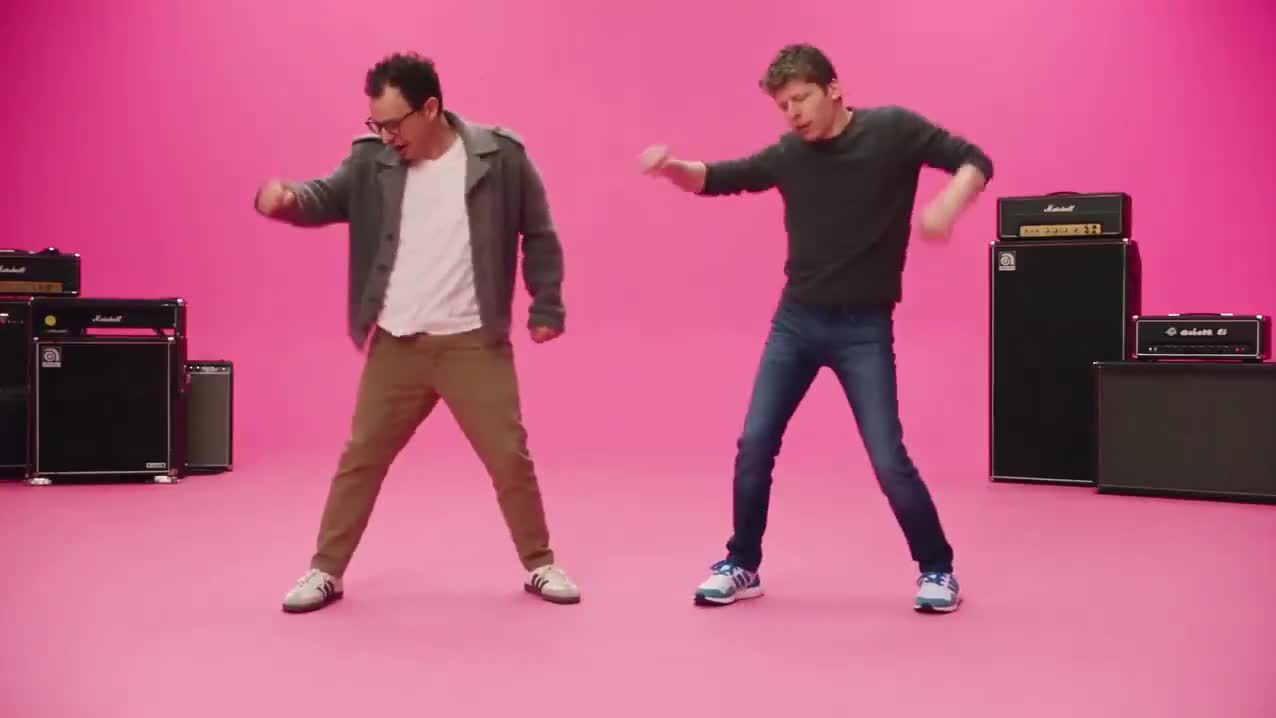
How to Make the 365 Elevator Trend: AI Generator, CapCut, Real Elevator or Prompt
How to make the 365 elevator trend, the Sampagne AI duo edit: with an AI generator, a 365 CapCut template, a real elevator or a video prompt.
By Burning Bridges AI · Updated · 6 min read
What is the 365 elevator trend?
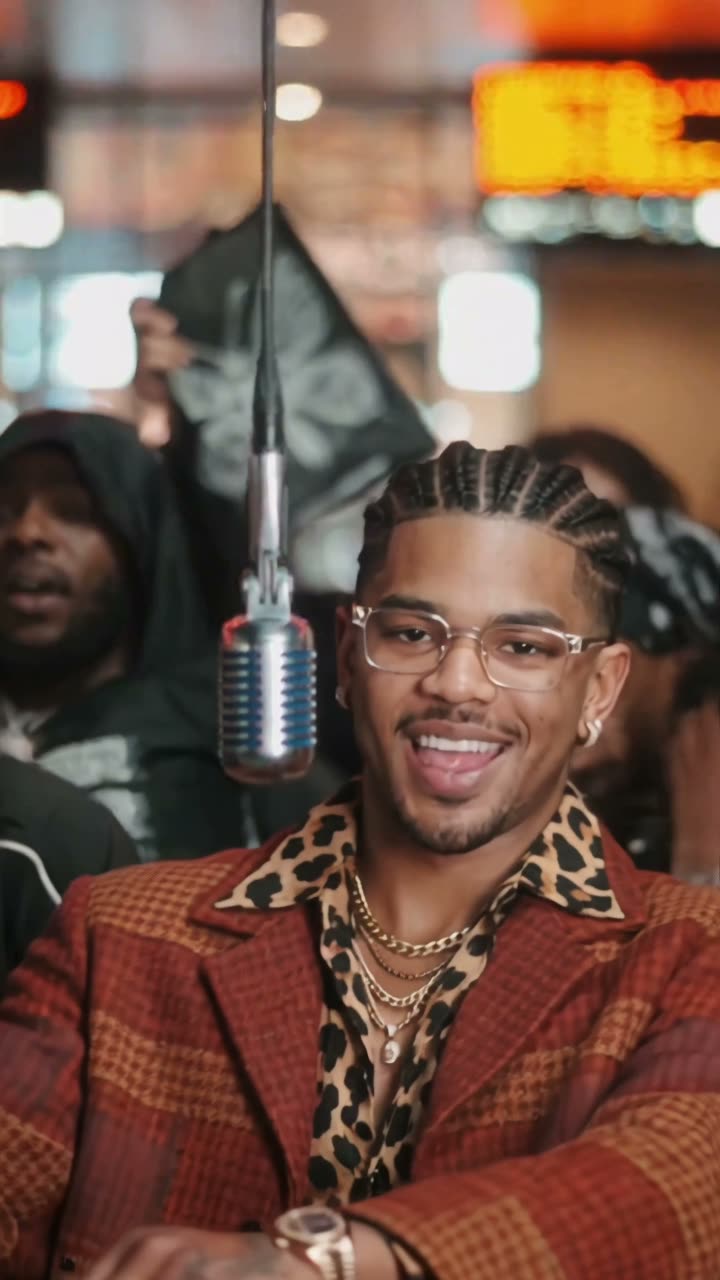
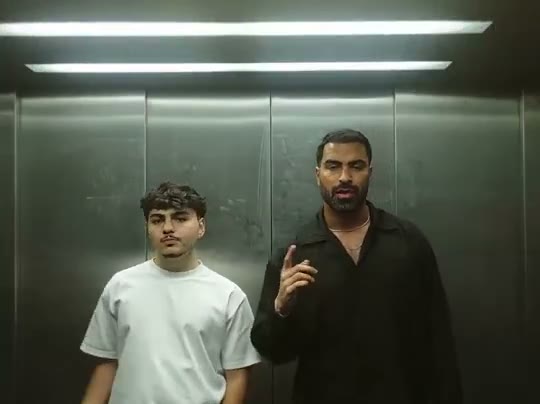
The 365 elevator trend is a 14-second two-person edit with “365” by Sampagne as its sound. One person waits in a brushed-steel elevator under two strip lights. A second person walks in past the camera with their back to it, turns, glances sideways, and the pair finish with blank faces aimed at the lens. Nobody speaks.
The format took off on the German TikTok account @neoausdermatrix33, which posts AI-made celebrity pairs in that elevator. Its posts from 20 to 22 November 2026 passed 1.6, 1.8 and 2.1 million views. TikTok tutorials call it the elevator 365 Sampagne AI video trend, the 365 edit or the 365 elevator scene.
How do you make the 365 elevator edit with an AI generator?
An AI generator holds the original elevator clip and replaces both people with the ones in your photos. You upload two photos, press generate and download the MP4. It is the fastest route and needs no editing app.
- Pick two photos, one person each, waist up or longer, faces clear.
- Open a 365 elevator generator and add the one who waits first, the one who walks in second.
- Pick a quality and generate. A render takes a few minutes.
- Download the MP4 and post it with the sound “365”.
The Sampagne elevator edit maker on this site works this way and keeps the song on the video.
How do you make the 365 elevator trend with a CapCut template?
A 365 CapCut template turns two photos into a short animated elevator edit inside the CapCut app. TikTok tutorial accounts share the template links under titles like “365 CapCut template” and “365 edit tutorial”.
- Install CapCut and sign in.
- Open a 365 elevator template from a tutorial video’s link, or search “365 elevator” in CapCut’s templates.
- Tap “Use template” and pick your two photos in the order the template asks for.
- Export the video and post it to TikTok with the sound “365”.
Templates differ in quality. Some recreate the full walk-in, others only animate the two photos side by side. Watch the template’s preview before you use it.
How do you film the 365 elevator trend in a real elevator?
Filming the 365 elevator trend for real needs an elevator, a phone on a fixed spot and a friend who keeps a straight face. The original look is a steel elevator with bright ceiling lights and a camera locked straight on, framing both people from the thighs up.
- Find a quiet elevator with plain metal walls. Ask the building first, and do not block it at busy times.
- Fix the phone against the open door frame or on a small tripod, landscape or 4:3, at chest height.
- Person one waits right of center, facing the camera.
- Person two walks in past the phone with their back to it at about 1 second, turns around at about 2.5 seconds and stands on the left.
- Hold the stare for the last 10 seconds: one glance, one hand to the face, then both look straight into the lens.
- Add the sound “365” by Sampagne in TikTok before you post.
How do you make the 365 elevator edit with a video model and a prompt?
The prompt route needs a video model that takes a reference video plus photos, such as Kling O3’s video-to-video edit mode. You upload the elevator clip as Video 1 and the two photos as Image 1 and Image 2. The prompt says who replaces whom and keeps the elevator, the timing and the camera as they are.
- Save the elevator clip and trim it to the model’s maximum reference length.
- Upload the clip as the reference video, then the two photos in order.
- Paste the prompt below and generate at the lowest resolution first.
- Check that the two people did not swap places. If they did, swap the photos and run it again.
- Lay the song back on if the model returns a silent video.
Recreate Video 1 shot for shot in one continuous take. Replace only the two people in the elevator.
Image 1 replaces the person who already waits in the elevator from the first frame and ends on the right.
Image 2 replaces the person who walks in past the camera with their back to it, turns around and ends on the left. While their back is turned, the hair and clothes are already those of Image 2.
Identity: keep each face, hair, skin tone, body shape and outfit from its own photo. Nothing about the original two people is used. The two faces never blend.
Scene: keep the brushed-steel elevator walls, the two white strip lights and the cool, even light exactly as they are.
Motion: copy the timing of Video 1: the wait, the walk-in, the turn, the hair touch, the sideways glances, the hand to the face, and the calm stare into the camera at the end. Nobody talks.
Camera: keep the fixed front camera and the framing from the thighs up.
Exactly two people in the elevator. No text, no logos, no watermark.
Which way should you choose for the 365 edit?
The right choice depends on what you want from the video. These conditions hold for one 14-second clip.
- Closest to the viral clip, fastest: an AI generator. It needs two photos and a few minutes.
- Already in CapCut: a 365 CapCut template. It is quick, and the result depends on the template.
- Free and real: film it in an elevator. It needs a quiet lift and good timing.
- Your own version of the scene: a video model with a prompt. You control the wording, and you pay for every retry.
How do you post the 365 elevator video on TikTok?
Post the 365 elevator video as a TikTok, Reel or Short with the sound “365” by Sampagne, and mark it as AI-generated if it is. TikTok asks creators to label realistic AI-generated content. The trend’s hashtags are #365elevatortrend and #365edit. A caption that asks “who should be next?” copies the original account’s hook.