How to Remake the Viral Drake “Burning Bridges” Video Trend with AI
Remake the viral Drake “Burning Bridges” video trend with AI: what the trend is, where it came from, and how to put yourself in the clip from one photo, step by step.
By Burning Bridges AI · Updated · 8 min read
What is the Drake Burning Bridges video trend?
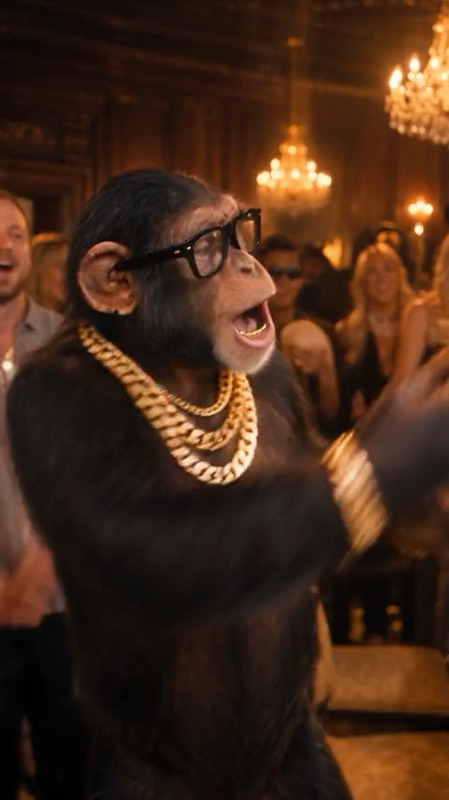
The Burning Bridges trend is a short-form video format where people put themselves into a party clip set to Drake’s song “Burning Bridges”. Instead of filming the moves, creators use AI to swap the performer for themselves, a friend, a pet or a character, and keep everything else from the clip: the room, the camera moves and the timing.
If you saw an AI party video on TikTok where someone (or a chimp in glasses and gold chains) walks up to the camera in a chandelier-lit room, grins, hypes up the crowd and then shields their eyes to look for someone, that’s this trend.
“Burning Bridges” is a track from Drake’s album Iceman, released on May 15, 2026 through OVO Sound and Republic Records. Critics read it as a diss track aimed at A$AP Rocky (here’s what the lyrics mean). The music video came out the same day and was shot in Toronto, partly in the private dining room of the Italian restaurant Sotto Sotto.
The line people act out is “where she at?”: one hand flat over the eyes, scanning the room. In September 2026, AI character-swap tools made it easy to drop anyone into the clip, and the AI versions spread across Threads, TikTok and Instagram Reels.
What happens in the Burning Bridges clip
The clip is 20 seconds long and vertical. Every remake follows the same four beats, so your version is recognisable in the first second:
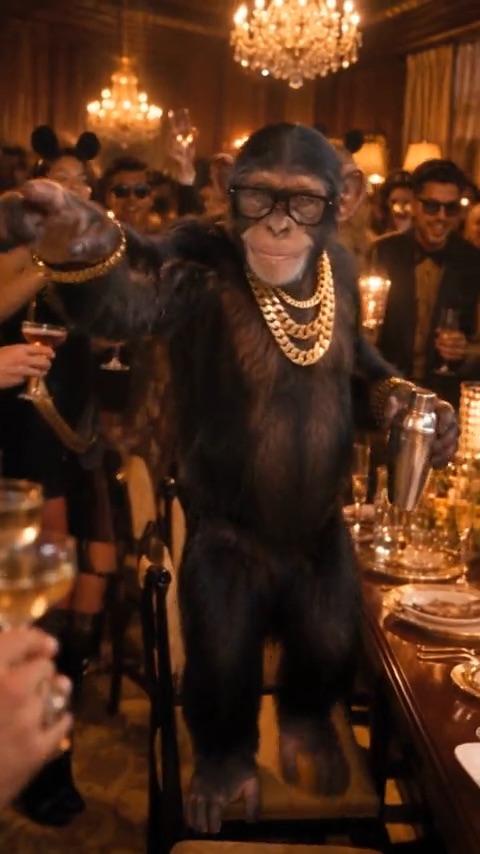
0–2 s
The walk-up
Steps forward and squares up to the camera.
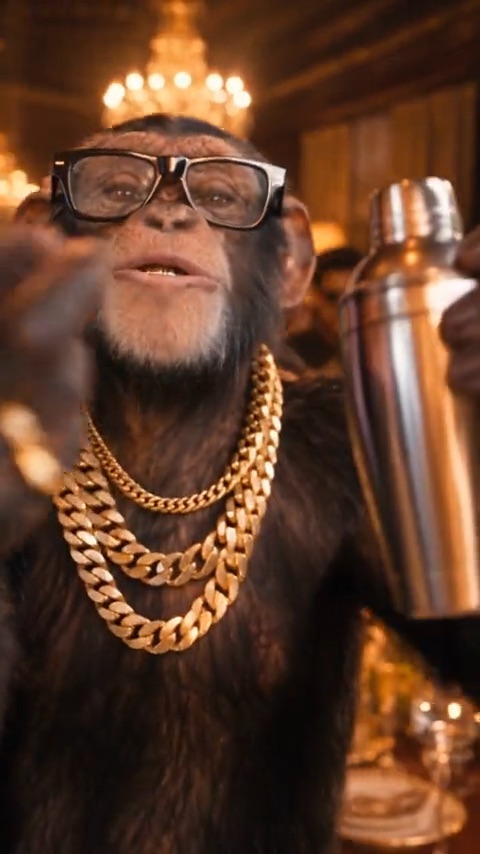
2–6 s
The grin
Leans into the lens with a slow grin, then raises a hand to the camera.
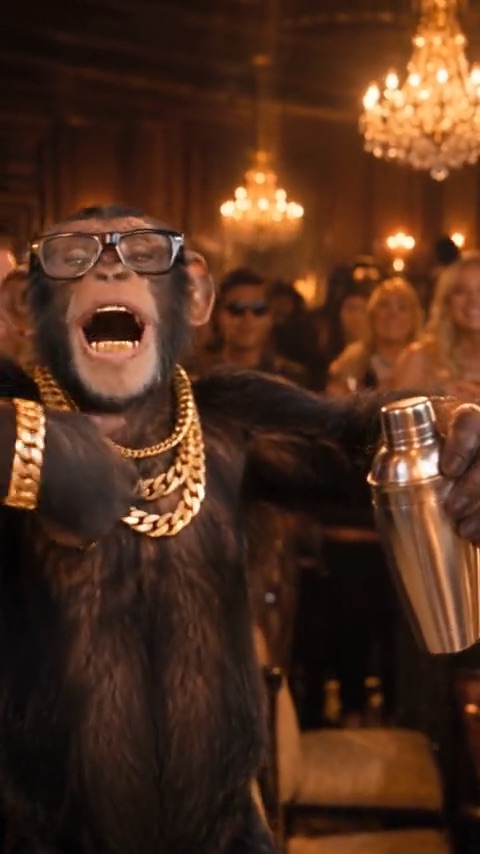
6–15 s
The hype
Arms wide, rapping along, rocking back and turning to work the room.
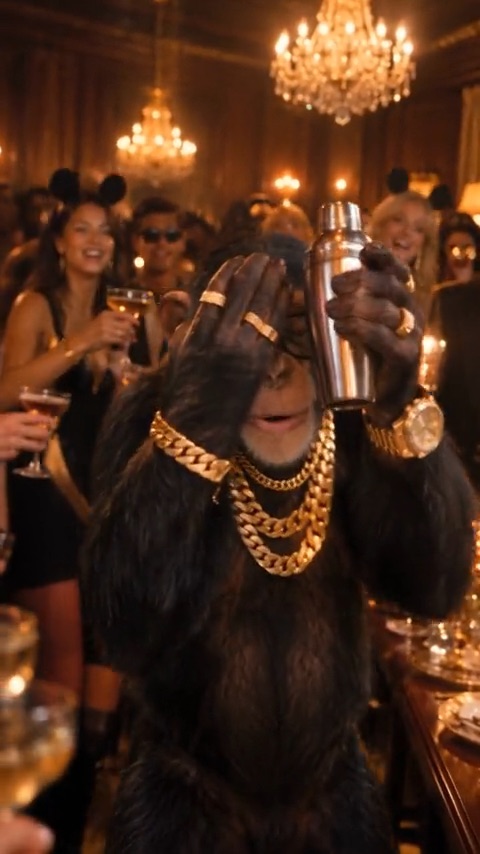
15–20 s
Where she at?
Hand flat over the eyes, scanning the room, then a finger pointed at the camera.
4 ways to remake the Burning Bridges video
There are four realistic ways to make your own version. They differ a lot in effort and in how closely the result matches the original moves and camera.
| Method | What you need | Result |
|---|---|---|
| Film it yourself | A room that looks like a party, a camera operator, a few takes to learn the timing | Free and fully yours, but hard to match the original’s scene and camera |
| Face-swap app | One selfie | Only the face changes; the body, outfit and hair stay the original performer’s |
| Prompt-based AI video | One photo and a text prompt describing the scene | A new scene invented from your text; the moves and camera rarely match the original, and the signature gestures often go missing |
| AI video recast | One photo, head to waist | You replace the whole performer (face, hair, outfit) while the moves, camera and room stay the same |
For this trend, the recast approach looks the most convincing, because the joke is that you are the one walking into that room, and it’s the only one that keeps the original moves and camera movement frame for frame. The steps below use it. For a side-by-side of the tools that do this, see the best Burning Bridges AI video generators.
How to make the Drake Burning Bridges video with AI, step by step
This walkthrough uses Burning Bridges AI, which runs in the browser on desktop or phone, with no app to install.
Step 1: Pick the right photo
The photo decides how good the video looks. Use a photo of one person facing the camera, head to waist in frame (full body is fine too), in even light. A recent phone photo works. See the photo checklist below if you are unsure. Pets work too; see how to put your pet in the video.
Step 2: Upload it and choose a clip
Open the studio and add your photo. You can keep the default party clip, which stars a chimp in glasses until the AI swaps you in, or switch to the hotel-suite after-party version. Both are already timed to the song, so there is nothing to trim or sync. You’ll be asked to sign in before generating; your photo stays in place while you do.
Step 3: Press Generate
Each video is HD (720p) and costs 100 credits. Rendering usually takes a few minutes. You can leave the page; the video keeps rendering and shows up in your studio when it’s done. If a video fails, the credits go back to your balance automatically.
Step 4: Download the video
The result is a 20-second vertical MP4 with the soundtrack included. Finished videos stay in your studio for 14 days, so download the ones you want to keep.
Step 5: Post it with the Burning Bridges sound
Upload to TikTok, Instagram Reels or YouTube Shorts. Keep the caption short and add tags like #burningbridges and #drake. The next section covers keeping the song.
How to keep the original song (and fix a silent video)
The video you download from Burning Bridges AI already has the trend clip’s soundtrack, in time with the moves. Prompt-based AI generators usually don’t, and you have to add the music yourself.
If your video plays silent after you post it, the platform muted the audio, which happens with copyrighted music. To fix it on TikTok, tap Add sound in the editor, search for “Burning Bridges” by Drake, pick the official sound and set the original audio volume to zero. On Instagram Reels, use Audio and search for the same song. Using the official sound also lists your video on the sound’s page, where people browsing the trend will find it.
Step-by-step for each app, plus what to do on a business account: how to add the Burning Bridges sound on TikTok, Reels and Shorts.
How to do the “Where she at?” gesture
The trend’s signature move comes at the end: on the “where she at?” line, hold one hand flat over your eyes like a visor, turn your head slowly to scan the room, then point straight at the camera. In the AI version you don’t have to perform it; it’s part of the clip, so your video does it automatically in the last five seconds. If you film it yourself, start the move just before the line so the scan lands on the beat.
Photo checklist for the best result
- One person (or one pet) per photo. Group shots confuse the model.
- Head, shoulders and upper body in frame; a waist-up or full-body shot is ideal.
- Face clearly visible: no sunglasses, masks, hands over the face or heavy beauty filters.
- Even light. Avoid strong backlight from a window behind you.
- Portrait or square crop, JPG, PNG or WebP. Very wide or very tall crops are rejected.
- Wear what you want to see in the video; the outfit in your photo carries over.
Common mistakes (and how to fix them)
- The face looks different from yours: the AI redraws your face in every frame while it moves, so it can only be as accurate as the photo. Small, dark or blurry photos, side angles, sunglasses and beauty filters all make faces drift. Use a sharp photo taken at eye level, looking at the camera.
- The wrong person was swapped in: the photo had more than one face. Crop it to one person.
- No sound after posting: the platform muted the audio. Add the “Burning Bridges” sound in the app instead.
- The video failed: usually a photo the model can’t read. Credits are refunded automatically; try a clearer photo.
A note on consent and copyright
Only use photos of yourself, your pets, or people who agreed to be in the video, and don’t use photos of celebrities, public figures or protected cartoon characters. Burning Bridges AI is an independent tool and isn’t affiliated with, endorsed by or connected to Drake, his label or the rights holders of the song.