
How to Put Your Pet (or Your Own Character) in the Burning Bridges AI Video
Make the Drake Burning Bridges AI video starring your dog, cat or your own character from one photo: steps, a pet photo checklist, and what’s allowed for cartoon characters and groups.
By Burning Bridges AI · Updated · 5 min read
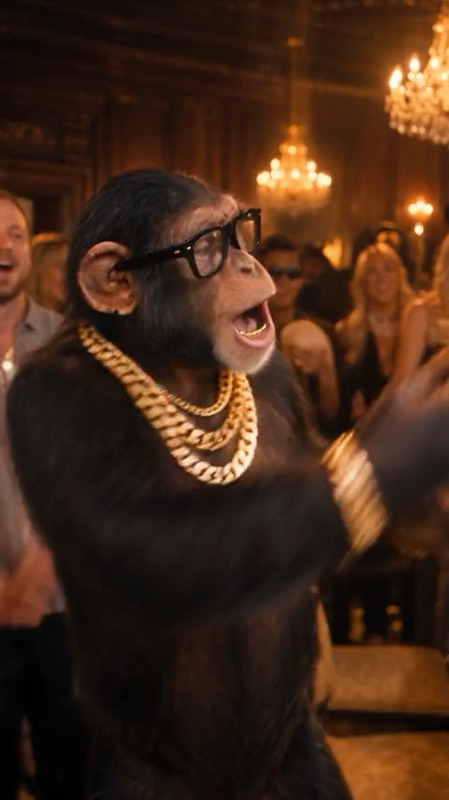
Does the Burning Bridges AI trend work with pets?
It does, and you don’t have to take our word for it: the default clip in the Burning Bridges AI studio stars a chimp in thick glasses and gold chains, partying in a chandelier-lit room. That clip is what every video is made from. The AI keeps the room, the camera and the moves, and swaps the performer for whoever, or whatever, is in your photo.
How to put your pet in the Burning Bridges video
Step 1: Pick one good photo of your pet
One animal, facing the camera, with its face and most of its body in frame. More on this in the checklist below.
Step 2: Upload it in the studio
Open the studio, add the photo, and keep the default party clip (the one with the chimp). It’s already timed to the song.
Step 3: Generate and download
Rendering takes a few minutes and you can close the tab meanwhile. The result is a 20-second vertical HD video with the soundtrack. If a video fails, the credits come back automatically.
Step 4: Post it
Post to TikTok, Reels or Shorts and add the official “Burning Bridges” sound if the platform mutes the audio. The full guide has the details.
Pet photo checklist
- One animal per photo. Two pets in one shot confuse the model about who to use.
- Face clearly visible, eyes open, looking roughly at the camera.
- Most of the body in frame; a sitting or standing pose beats a close-up of the nose.
- Sharp, not mid-jump. Motion blur turns into a smudgy performer.
- Even light, and a background that doesn’t match your pet’s fur color.
- Anything your pet wears in the photo, like a bandana or a sweater, can carry over into the video.
Expect some creative license. The AI has to fit an animal into moves made for an upright performer, so results vary more from photo to photo than with people. If the first one comes out odd, a different photo, usually one with more of the body showing, tends to fix it.
Cartoon characters, Shrek and other characters
Since late September 2026, the trend has filled up with swapped-in characters, from Shrek to TV villains. You can do the same with a character, with one rule: it has to be one you have the rights to.
- Works: your own drawings, your brand’s mascot, an original AI character you created, your kid’s doodle turned into a character (with permission from the artist).
- Not allowed on Burning Bridges AI: Shrek and other studio characters, celebrities and public figures. Our Terms don’t allow protected characters you have no rights to, and platforms can remove those videos anyway.
For a character, upload a clear, full-body image on a plain background, just like a pet photo.
Friends and group videos
You can put a friend in the video if they agreed to it; use a photo of just them. Each video recasts one performer, so for a group version, make one video per friend (or pet) and cut them together in an editor like CapCut, switching to the next person on each beat.
New to the trend? Start with how to make the Drake Burning Bridges video with AI, or compare the tools that make it.