How to Post Your Burning Bridges AI Video With the Sound on TikTok, Reels and Shorts
Keep the song or add the official Burning Bridges sound: step-by-step for TikTok, Instagram Reels and YouTube Shorts, what to do if your video gets muted, and how to label it as AI.
By Burning Bridges AI · Updated · 5 min read

Does the Burning Bridges AI video have sound?
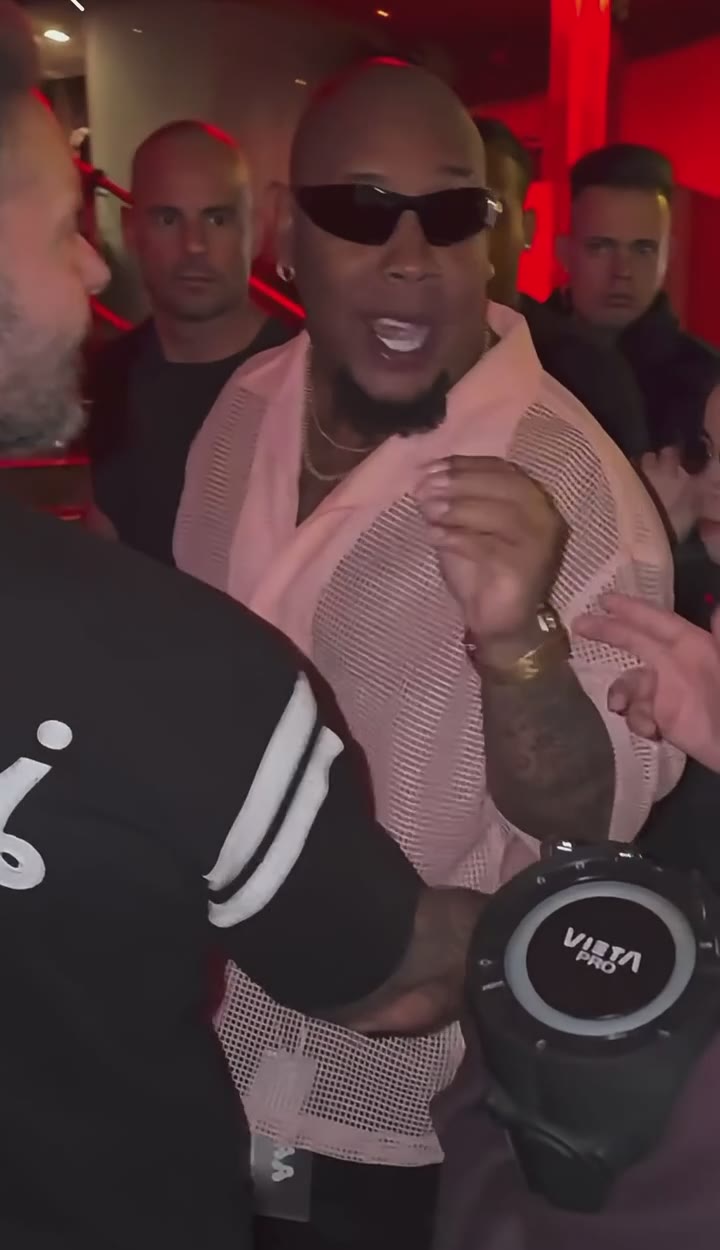
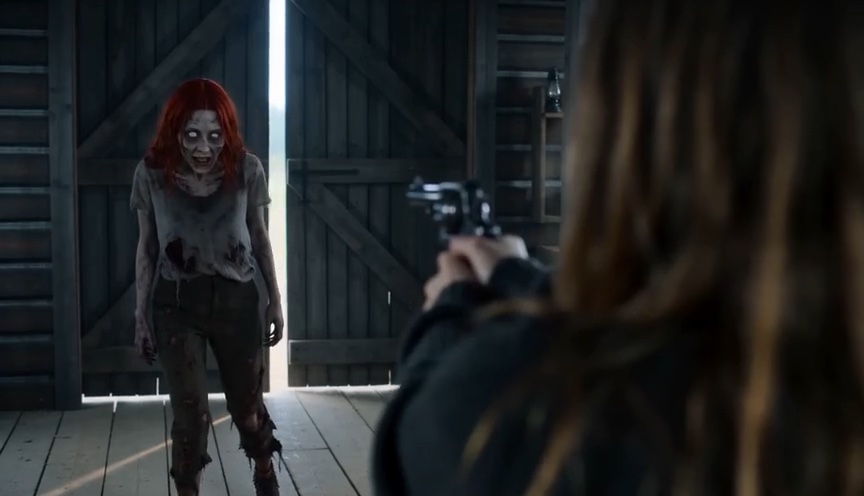
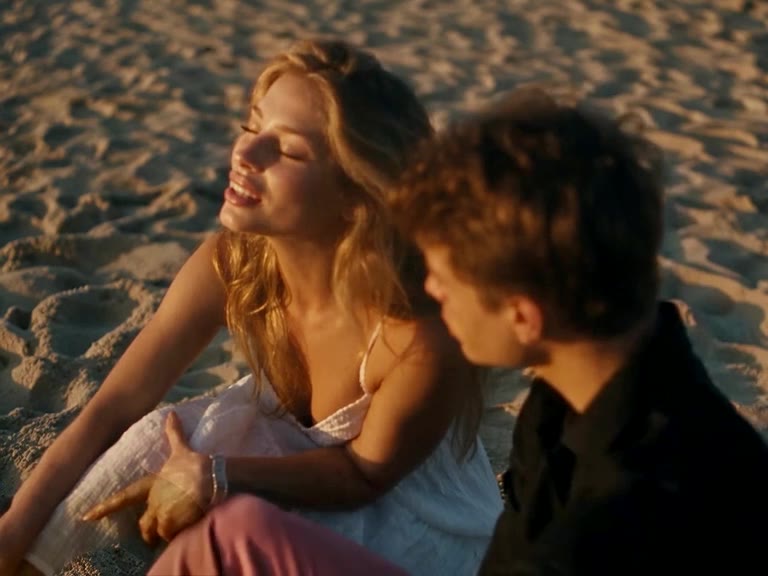
It depends on the tool. Many Burning Bridges AI generators export a silent video and leave the music to you, so their guides start with “your video downloads without audio”. On Burning Bridges AI the 20-second video already carries the trend clip’s soundtrack, laid over the new video in time with the walk-up, the grin and the “where she at?” finish.
That leaves you two ways to post it:
- Keep the built-in song. Upload and post. Nothing else to do.
- Swap in the platform’s official sound. Your video then appears on the “Burning Bridges” sound page, where people browsing the trend find it. It is also the fix if the platform mutes your upload.
Where you post, and what to watch
| Platform | Where the sound comes from | What to watch |
|---|---|---|
| TikTok | Built-in song, or Add sound → search “Burning Bridges” | One sound per video; business accounts need commercially licensed music |
| Instagram Reels | Built-in song, or Audio → search the track | Licensed tracks can be muted later; no licensed music in boosted reels |
| YouTube Shorts | Built-in song, or Sound → Audio Library | Library tracks are for personal, non-commercial use |
How to add the Burning Bridges sound on TikTok
- Tap the + (Add post) button and upload your Burning Bridges video.
- In the editor, tap Add sound and search for “Burning Bridges” by Drake.
- Pick the official sound and tap Use.
- Drag the sound clip so the part that plays lines up with the walk-up at the start.
- Tap Next, open More options and turn on AI-generated content.
- Post.
TikTok allows one sound per video, and business accounts can only use music licensed for commercial use (TikTok Support: Sounds).
How to add the Burning Bridges sound on Instagram Reels
- Start a new reel and select your Burning Bridges video.
- Tap Audio and search for “Burning Bridges”.
- Pick the track and choose the part that matches the moves.
- Add a caption and share.
Two things Instagram’s help pages warn about: licensed tracks can be muted later when Instagram’s agreements with rights holders change, and boosted reels can’t use licensed music (adding music to a reel, what audio you can use). If your reel gets muted, Instagram lets you replace the muted audio.
YouTube Shorts
The Burning Bridges AI video is vertical and 20 seconds long, so it uploads as a Short with its song as it is. To use YouTube’s own music instead, tap Sound in the Shorts editor and pick from the Audio Library. YouTube says library tracks are free for personal, non-commercial use (YouTube Help: add and edit audio).
If your video is muted after posting
- Muted on TikTok or Reels: edit the post, or repost, with the official “Burning Bridges” sound from the app’s library instead of the built-in song.
- Business account: switch to a personal account for this post, or use a commercially licensed track.
- Still silent before posting: check the phone isn’t on silent and play the downloaded file in your gallery. The video from Burning Bridges AI has sound; if the file plays silent, download it again from the studio.
Label it as AI
The video is AI-generated, so label it. On TikTok, turn on AI-generated content under More options before posting (TikTok Support). Labeling doesn’t hurt reach, and it keeps your account on the right side of the rules.
Haven’t made the video yet? Follow how to make the Burning Bridges AI video, or put your pet in it.